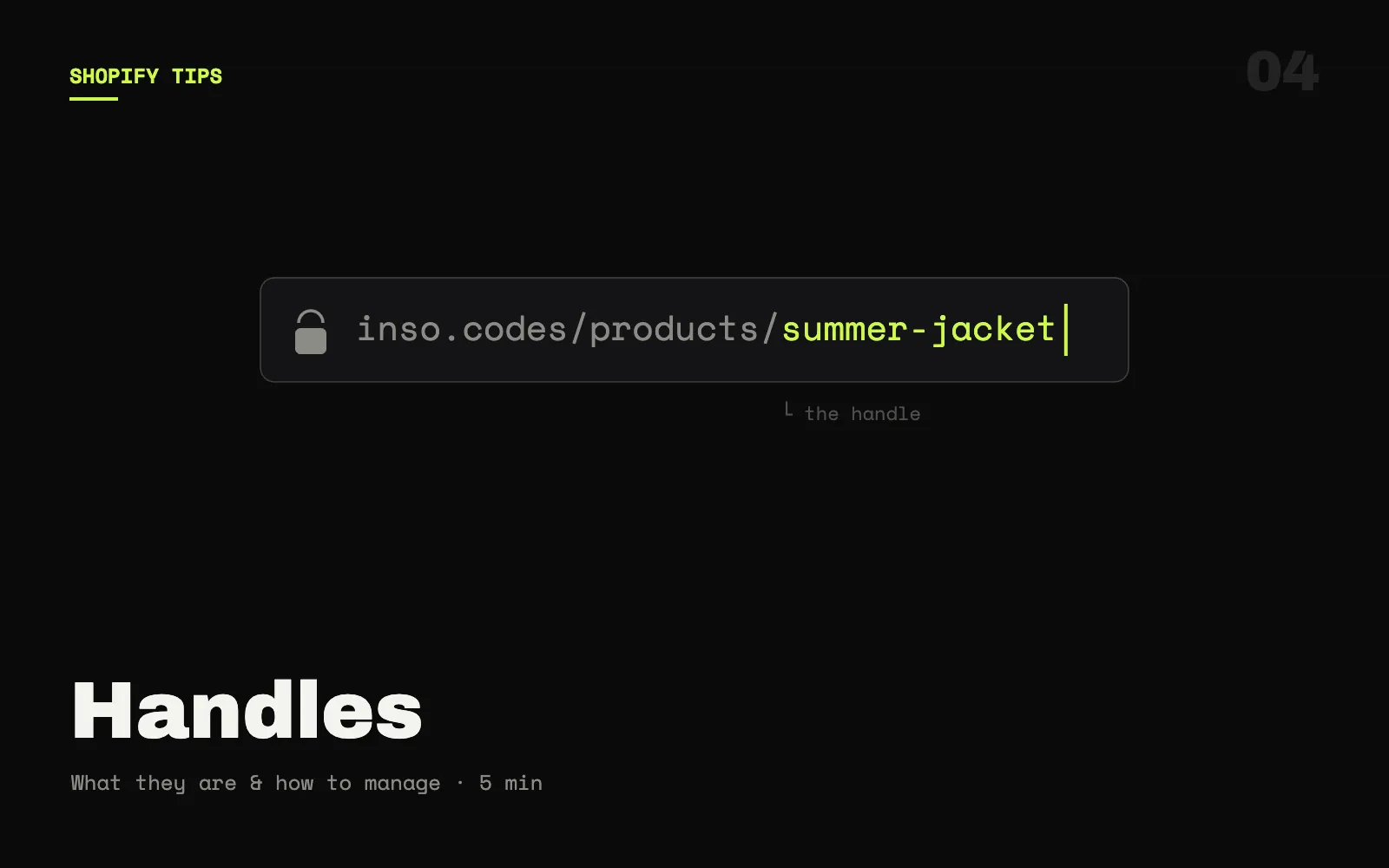
- A Shopify handle is the lowercase, hyphen-separated slug that appears in a resource's URL — e.g.
organic-cotton-t-shirtin/products/organic-cotton-t-shirt. - Handles are auto-generated from the resource name but can be manually edited in the Search engine listing section of the admin.
- In Liquid templates, compare handles with
== handleor retrieve a specific resource withall_products[handle]andcollections[handle]. - When editing a handle, select Shopify's Create URL redirect option and check the redirect before you share the new URL.
01 What is a Shopify handle?
A Shopify handle is the URL-friendly slug that uniquely identifies a resource — product, collection, page, or blog post — within your store. It contains only lowercase letters, numbers, and hyphens, and it forms the final segment of that resource's URL. For example, a product named "Organic Cotton T-Shirt" gets the handle organic-cotton-t-shirt, producing the URL https://yourstore.myshopify.com/products/organic-cotton-t-shirt.
Shopify generates handles automatically when you create a resource, but you can edit them at any time. The same concept applies across all resource types:
| Resource type | Example handle | Resulting URL |
|---|---|---|
| Product | organic-cotton-t-shirt | /products/organic-cotton-t-shirt |
| Collection | summer-sale | /collections/summer-sale |
| Page | about-us | /pages/about-us |
| Blog post | how-to-style-linen | /blogs/news/how-to-style-linen |
02 Why do handles matter for SEO and UX?
Handles sit at the intersection of three concerns: URL readability, search engine ranking, and Liquid template logic.
- SEO — Search engines read URL paths as a relevance signal. A handle like
best-running-shoescarries keyword context thatproduct-4872does not. Descriptive, keyword-relevant handles can improve organic rankings for product and collection pages. - User navigation — Clean URLs build trust. A shopper who sees
/collections/summer-saleinstantly knows where they are; an opaque hash-based URL does not convey that. - Liquid access — Inside Shopify theme code, handles are the primary key for fetching and conditionally rendering resources (see Using handles in Liquid below).
Google treats hyphens in URLs as word separators, which is why Shopify uses hyphens rather than underscores. summer-sale is indexed as two separate words; summer_sale is treated as a single token.
03 How to find a handle in the Shopify admin
The handle for any resource is visible in the admin's SEO section. For a product:
- Log in to your Shopify admin.
- Go to Products and open the product you want to inspect.
- Scroll to the Search engine listing section near the bottom of the page.
- Click Edit website SEO to expand the panel.
- The URL and handle field shows the full path — the handle is everything after
/products/.
The same workflow applies to collections (Products → Collections), pages (Online Store → Pages), and blog posts (Online Store → Blog posts). Do not infer a storefront handle from the last segment of an admin URL: admin resource URLs often end in a numeric ID. Use the URL and handle field, or inspect the public storefront URL instead.
04 How to edit a handle
Editing a handle in Shopify takes only a few clicks, but carries SEO consequences you should address immediately:
- Open the resource in the admin and expand the Search engine listing panel.
- Click Edit website SEO and locate the URL and handle field.
- Replace the handle text with your new value — Shopify enforces the lowercase-and-hyphens format automatically.
- Save the resource.
Before you save, select Create URL redirect. That option creates a redirect for the old path; it is still worth checking the old URL after the save when search, campaigns, or navigation depend on it (see Redirects after changing a handle).
05 Best practices for naming Shopify handles
Shopify auto-generates handles from resource names, but those defaults aren't always optimal. Apply these rules when you create or clean up handles:
- Be descriptive and keyword-relevant — use terms shoppers search for.
blue-wool-scarfoutperformsproduct-5678for organic discovery. - Keep it concise — 3–5 words is usually enough. Overly long slugs add noise without benefit.
- Use hyphens, not underscores — search engines split hyphens into individual words; underscores are treated as one token.
- Avoid special characters and stop words — strip "the", "a", "and" from handles. They add length with no SEO value.
- Don't include version numbers or dates — handles like
t-shirt-v2-2024become stale quickly and fragment link equity across product iterations. - Stay consistent across resource types — if you sell a product
merino-base-layer, name the corresponding collectionbase-layersand the blog posthow-to-care-for-base-layers. Consistent naming aids internal linking.
06 Generate and check handles before a bulk import
For a naming cleanup, generate proposed handles from product titles first, then validate the actual import file before it reaches Shopify. Use the bulk handle generator and CSV checker above to spot duplicate handles and fill blank handle cells locally; it does not upload your catalogue.
A repaired CSV is a review artifact, not a blind import. Keep variant rows with the same product handle together, and review title, option, SKU, and image columns before importing. If you only need the file check, open the Shopify CSV validator and repair tool.
07 Using handles in Shopify Liquid templates
Handles are the primary way Liquid templates identify and fetch resources. Three patterns cover the vast majority of use cases:
Reading the current handle
Every resource object exposes a .handle property. Use it for conditional rendering or data attributes:
{{ product.handle }}
{{ collection.handle }}
{{ page.handle }}
Conditional rendering by handle
To show a section only for a specific product or collection, compare the handle with ==:
{% if collection.handle == 'summer-sale' %}
  <div class="promo-banner">Sale on now — 30% off everything!</div>
{% endif %}
Fetching a resource by handle
Use all_products or the collections global array to retrieve a specific resource anywhere in the theme — even outside its own template:
{% assign featured = all_products['organic-cotton-t-shirt'] %}
{% if featured %}
  <h2>{{ featured.title }}</h2>
  <p>{{ featured.price | money }}</p>
{% endif %}

{% assign sale = collections['summer-sale'] %}
{% if sale %}
  <p>{{ sale.products_count }} products in the sale</p>
{% endif %}all_products[handle] is a Liquid lookup, not a Storefront API request. Shopify limits it to 20 unique handles per page, so cache a lookup in a variable and do not use it as a catalogue loop.
08 Setting up redirects after changing a handle
When you edit a handle, select Create URL redirect before saving. Shopify also provides a redirect manager for reviewing and adding redirects:
- In the admin go to Content → Menus → URL redirects.
- Open URL redirects and then Add URL redirect if you need to add or repair one manually.
- In the Redirect from field enter the full old path — e.g.
/products/old-handle. - In the Redirect to field enter the new path — e.g.
/products/new-handle. - Save. Shopify returns a 301 permanent redirect, which passes link equity to the new URL.
If you're changing handles in bulk (after a store migration or a naming overhaul), Shopify's admin supports CSV import for redirects — download the template from the URL Redirects page, populate it, and re-upload.
Also update any internal links in your theme, page content, or navigation menus that still point to the old handle. A redirect handles the 404 but a direct link is always faster than a redirect chain.
09 Conclusion
Shopify handles are small strings with outsized impact: they shape your store's URL structure, influence organic search rankings, and power the Liquid logic that makes themes dynamic. Getting handles right from the start — descriptive, keyword-relevant, hyphen-separated — means less cleanup later. And when you do need to change one, the combination of a Shopify URL redirect and updated internal links keeps both SEO and user experience intact.
For further reading, see Shopify's official URL handles documentation, its URL redirect guide, and the all_products Liquid reference. Need a hand auditing or re-architecting your store's URL structure? That's exactly the kind of work we do — drop us a line.
07 Frequently asked questions
- What is a Shopify handle?
- A Shopify handle is a unique, URL-friendly identifier automatically generated from a resource's name — using only lowercase letters, numbers, and hyphens. It appears at the end of the resource URL, for example
organic-cotton-t-shirtin/products/organic-cotton-t-shirt. - How do I find the handle for a Shopify product?
- Open the product in your Shopify admin, scroll to the Search engine listing section, and click Edit website SEO. The handle is shown in the URL and handle field — it is the path segment after
/products/. - Can I change a Shopify handle, and will it break SEO?
- Yes. When you save the edited URL and handle, select Shopify's Create URL redirect option. You can review redirects in Content → Menus → URL redirects; check the old URL after saving before relying on it in campaigns or navigation.
- How do you use a handle in a Shopify Liquid template?
- Access the current resource handle with
{{ product.handle }}or{{ collection.handle }}. To conditionally show content, use{% if product.handle == 'my-product' %}. In theme Liquid,all_products['my-handle']can fetch a product by handle; it has a limit of 20 unique handles per page, so do not use it as a catalogue loop. - What characters are allowed in a Shopify handle?
- Shopify handles may only contain lowercase letters (
a–z), digits (0–9), and hyphens (-). Spaces become hyphens automatically; uppercase letters are lowercased; special characters and underscores are removed or replaced. - Can I generate Shopify handles in bulk without breaking variants?
- Yes. Generate candidate handles from product titles, then validate the CSV before import. All variant rows for one product must keep the same
Handle; do not generate a separate handle for each variant. Review title, option, SKU, and image columns before importing. The local CSV validator and repair tool checks the file in your browser without uploading it.